What a pita. This is a great scanner (for 35mm photos even, which is why I am trying to get it going again).
It’s always been hard to get it going since Windows 7 on.
I haven’t tried this yet, because I have to walk downstairs and unplug the scanner (what a lazy bum)
Anyway I want to squirrel this hint away so I don’t lose it.
It’s from http://www.gollyjer.com/2010/12/installing-epson-perfection-2450.html by the way.
Installing an Epson Perfection 2450 Scanner on 64 bit Windows 7
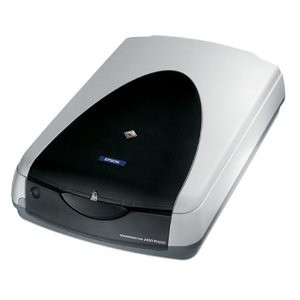 It was a major ordeal figuring out how to get this scanner, purchased in 2002, working in 64 bit Windows 7. It’s crazy, the thing is still available on Amazon after 8 years. It’s actually ranked #4 in Electronics > Camera & Photo > Printers & Scanners > Flatbed.
Epson provides a 32-bit driver on their site but not 64-bit. I’ve solved this problem before but it was a massive Google hunt. Next time I’ll have this blog post to look to! 🙂
The solution is pretty simple.
- Unplug the scanner from the computer.
- Go to the driver page for the Epson 4990, download, unzip, and install the driver by clicking the default selection in each dialog box presented.
- Plug the 2450 into the computer. Windows will not find the driver.
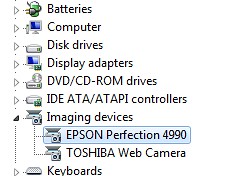
- Click the Windows start button, type ‘device manager’ in the search bar, then click Device Manager.
- Right click the EPSON Scanner device and select Update Driver Software.
- Click ‘Browse my computer for driver software’.
- Click ‘Let me pick from a list of devices on my computer’.
- Select ‘Imaging Devices’ and click Next.
- Choose Epson in the Manufacturer column and EPSON Perfection 4990 in the Model column.
- Click Next, then Yes, let the software install, then Close.
Done! The scanner should now show up under Imaging Devices.